
Bloxstrap Fast Flags – Boost FPS
Important — Roblox’s fast-flag allowlist (Sept 29, 2025): Roblox now only applies fast flags that are on its official allowlist. Most flags in older lists — including the FPS-unlock flag ‘DFIntTaskSchedulerTargetFps’ — are silently ignored by the current client and do nothing. Roblox also caps frame rate at 240 FPS, so no flag can give you more than that. The presets below are the settings that can still affect rendering and loading; treat any ‘unlock’ claim with caution and use Roblox’s own Maximum Frame Rate setting (Esc → Settings) for your frame-rate cap.
Optimize your Roblox performance and improve FPS — Bloxstrap offers a powerful way to modify settings through FFlags Bloxstrap.
Optimize Bloxstrap with Custom FastFlags
Before anything, make sure Bloxstrap is installed on your PC. If you haven’t already, download it from the official GitHub release.
- Once Bloxstrap is installed, open the app.
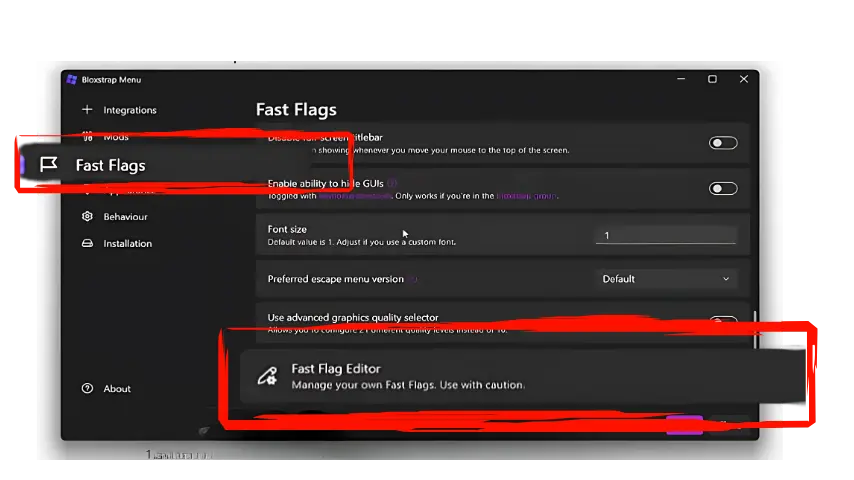
- Navigate to the “FastFlags” section from the sidebar.
- Scroll down and select “FastFlag Editor”. Note: in Bloxstrap v2.11 and later, the Fast Flag Editor is available only if you have Roblox Studio installed.
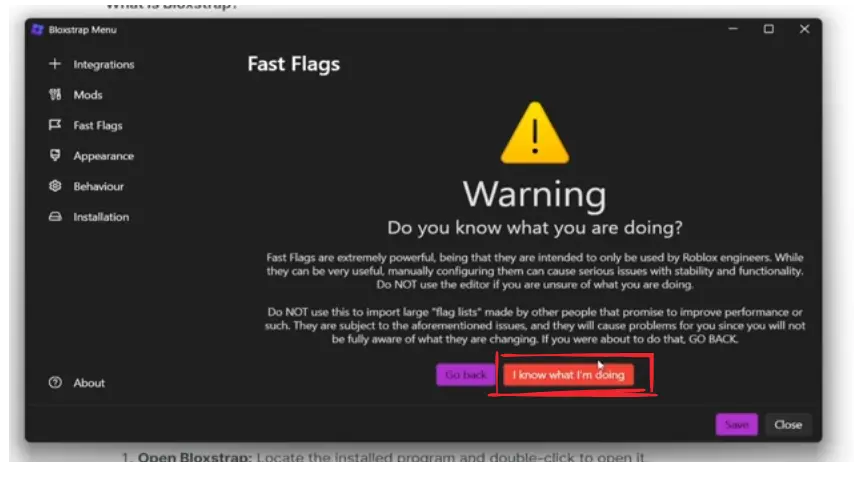
- A warning message will appear — read it carefully. It simply reminds you to be cautious when modifying internal Roblox settings.
- Click “I know what I’m doing” to proceed.
- Click “Add New” and then go to “Import JSON.”
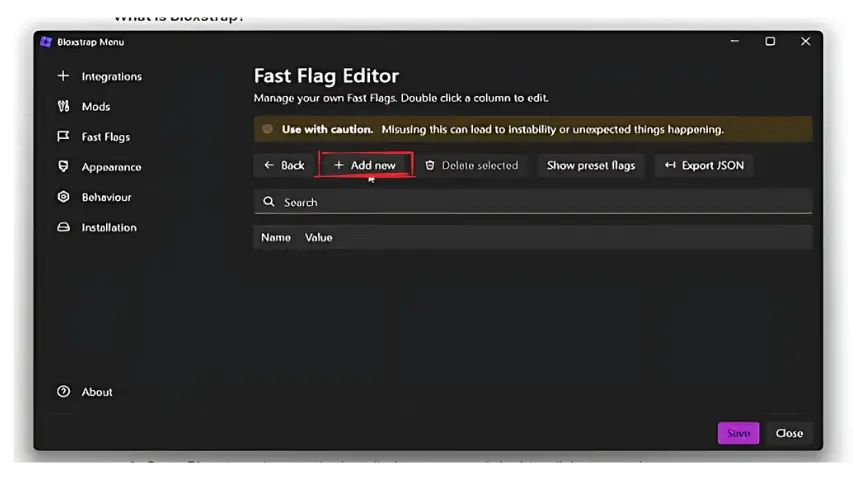
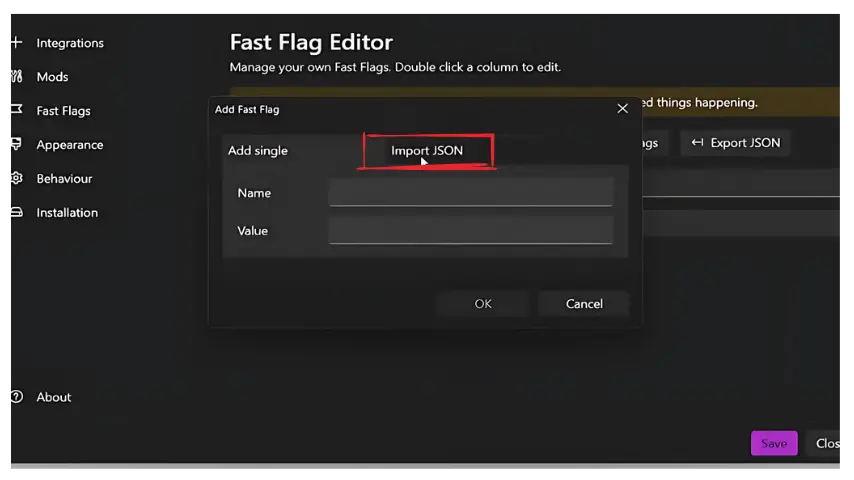
- Copy the optimized FastFlag JSON code from below and paste the copied code into the editor and click “OK.”
{
  "FLogNetwork": "7",
  "FFlagUseNewAnimationSystem": "False",
  "FFlagDebugDisableTelemetryEventIngest": "True",
  "FFlagTweenOptimizations": "True",
  "DFIntCSGLevelOfDetailSwitchingDistance": "0",
  "FFlagDebugSkyGray": "True",
  "DFFlagDebugPerfMode": "False",
  "DFFlagBrowserTrackerIdTelemetryEnabled": "False",
  "DFStringTelemetryV2Url": "null",
  "FFlagFixGraphicsQuality": "True",
  "FFlagEnableNewHeapSnapshots": "False",
  "FFlagNewNetworking": "False",
  "FFlagPreloadAllFonts": "False",
  "FStringGamesUrlPath": "/games/",
  "DFFlagDisableFastLogTelemetry": "True",
  "FFlagNewLightAttenuation": "True",
  "FFlagDebugGraphicsPreferD3D11": "True",
  "FFlagEnableTerrainFoliageOptimizations": "True",
  "FFlagDebugDisableTelemetryPoint": "True",
  "DFStringAltTelegrafHTTPTransportUrl": "null",
  "FFlagEnableHumanoidLuaSideCaching": "False",
  "DFFlagTextureQualityOverrideEnabled": "True",
  "DFIntCSGLevelOfDetailSwitchingDistanceL34": "0",
  "FFlagFastGPULightCulling3": "True",
  "FFlagEnableNewInput": "True",
  "FFlagCommitToGraphicsQualityFix": "True",
  "FFlagAnimatePhysics": "False",
  "FFlagSimIslandizerManager": "false",
  "FFlagDebugDisableTelemetryEphemeralCounter": "True",
  "FFlagDebugDisableTelemetryV2Stat": "True",
  "FFlagUseUnifiedRenderStepped": "False",
  "FFlagUseParticlesV2": "False",
  "DFIntCSGLevelOfDetailSwitchingDistanceL12": "0",
  "FFlagTaskSchedulerLimitTargetFpsTo2402": "False",
  "FFlagUseDeferredContext": "False",
  "FFlagOptimizeEmotes": "False",
  "DFStringLightstepToken": "null",
  "FFlagFixScalingModelRendering": "False",
  "DFIntNewRunningBaseAltitudeD": "45",
  "FFlagDebugDisableTelemetryV2Counter": "True",
  "DFIntClientLightingTechnologyChangedTelemetryHundredthsPercent": "0",
  "FFlagUseDynamicSun": "False",
  "DFFlagDebugPauseVoxelizer": "True",
  "DFStringTelegrafHTTPTransportUrl": "null",
  "DFStringRobloxAnalyticsURL": "null",
  "DFIntLightstepHTTPTransportHundredthsPercent2": "0",
  "DFStringLightstepHTTPTransportUrlHost": "null",
  "DFStringCrashUploadToBacktraceWindowsPlayerToken": "null",
  "FFlagEnableTerrainOptimizations": "True",
  "DFFlagDisableDPIScale": "True",
  "FFlagLuaAppSystemBar": "False",
  "FFlagFixMeshPartScaling": "False",
  "DFStringCrashUploadToBacktraceBaseUrl": "null",
  "DFStringCrashUploadToBacktraceMacPlayerToken": "null",
  "DFIntS2PhysicsSenderRate": "250",
  "FFlagEnableLightAttachToPart": "False",
  "FFlagDebugDisableTelemetryEphemeralStat": "True",
  "FFlagDebugDisableTelemetryV2Event": "True",
  "FFlagAdServiceEnabled": "False",
  "DFIntCSGLevelOfDetailSwitchingDistanceL23": "0",
  "DFStringHttpPointsReporterUrl": "null",
  "FIntRenderShadowIntensity": "0",
  "FFlagDebugCrashReports": "False",
  "FStringCoreScriptBacktraceErrorUploadToken": "null",
  "FFlagDebugDisplayFPS": "False",
  "DFFlagEnableLightstepReporting2": "False",
  "DFStringAltHttpPointsReporterUrl": "null",
  "DFStringLightstepHTTPTransportUrlPath": "null",
  "DFIntRenderingThrottleDelayInMS": "1",
  "DFIntRunningBaseOrientationP": "115",
  "FFlagHandleAltEnterFullscreenManually": "False",
  "DFFlagDebugRenderForceTechnologyVoxel": "True",
  "DFFlagBaseNetworkMetrics": "False",
  "FFlagDisablePostFx": "True",
  "FIntTerrainArraySliceSize": "0",
  "FIntDebugForceMSAASamples": "1"
}
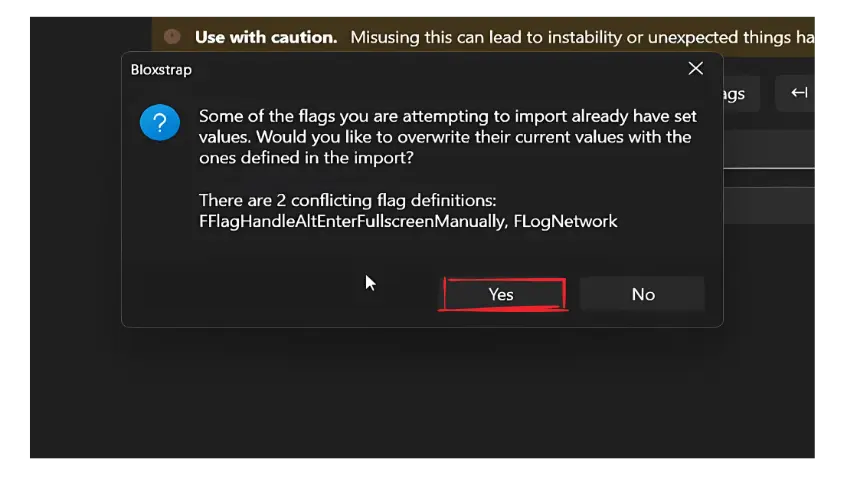
⚠️ Note: If a popup says some of the flags already exist, just confirm to override them. And click “Yes.”
Bloxstrap Fast Flags Tutorial
Customize Bloxstrap Settings On Your Preference
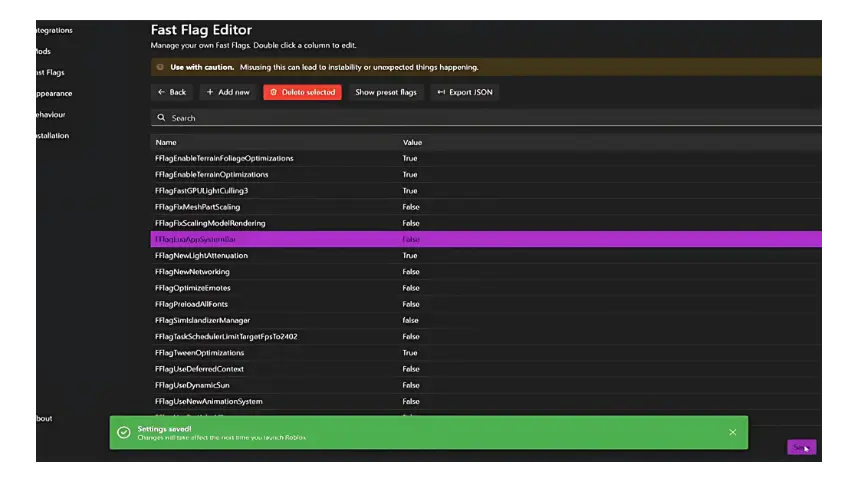
Some FFlags Roblox may affect visual quality — for example, the sky may appear gray for performance gains.
If you prefer default visuals:
- Scroll through the Bloxstrap Fast flag list.
- Locate and delete any specific flags you don’t want (like the gray sky).
- When satisfied, click “Save” to apply.
Can Fast Flags Reduce Ping?
Roblox does not let players change ping with client-side flags — ping is set by your connection and the server’s location. Use the server-region indicator in Bloxstrap and rejoin to land on a closer server instead.
Configure Fast Flags Roblox for FPS Boost
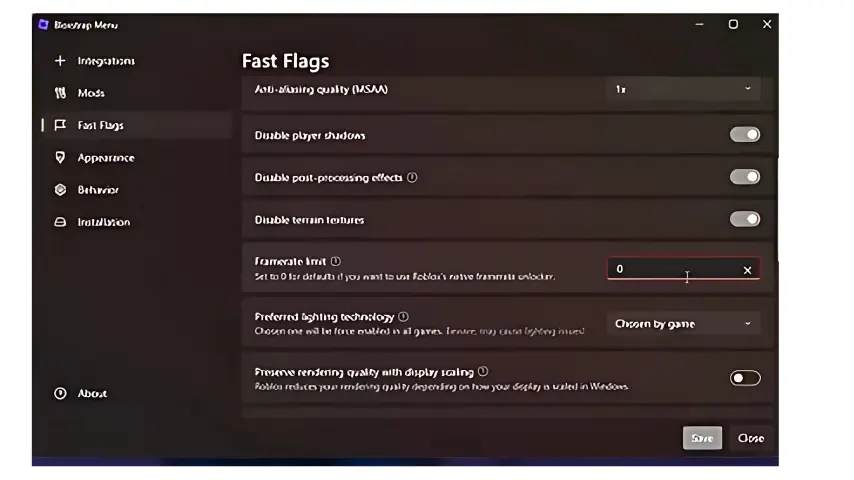
- Go to Fast Flags Bloxstrap
- Change these settings:
- Anti-Aliasing Quality → 1x
- Disable Player Shadows → ON
- Disable Post-Processing Effects → ON
- Disable Terrain Limit → ON
- Frame Rate Cap → match your monitor’s refresh rate (Roblox caps at 240 FPS)
- Preferred Lighting Technology → Test between options (Voxel gave best FPS in this case)
- Rendering Mode → Test between Direct3D10 or keep it on automatic
- Texture Quality → Lowest (worse visuals, better FPS)
You’re Done!
You’ve now applied the best FPS optimization settings for Roblox using Bloxstrap Fast Flags. You can always return to adjust or remove individual flags as needed.
Frequently Asked Questions
Do fast flags still work after Roblox’s allowlist?
Only flags on Roblox’s official allowlist (Sept 29, 2025) still work. Most older flags are silently ignored by the current client, including the FPS-unlock flag DFIntTaskSchedulerTargetFps.
What is the maximum FPS Bloxstrap can give me?
Roblox caps frame rate at 240 FPS, so no flag can give you more than that. Use Roblox’s own Maximum Frame Rate setting (Esc → Settings) for your frame-rate cap.
Can fast flags lower my ping?
No. Ping is set by your connection and the server’s location. Use the server-region indicator in Bloxstrap and rejoin to land on a closer server instead.
How do I import these fast flags in Bloxstrap?
Open Bloxstrap, go to Fast Flags, then FastFlag Editor, click Add New → Import JSON, paste the JSON from this page and click OK.
Are these fast flags safe?
The presets on this page only change rendering, texture and telemetry settings. Never use flags or scripts to cheat or exploit games — that can get your account banned.
More fast-flag presets
These presets were moved here from the site’s older fast-flags guides so they stay in one place. They follow the same allowlist notice at the top of this page — any flag Roblox does not allow is ignored by the client.
Voidstrap preset — a small rendering preset that turns off shadows, post-processing and extra loading work.
{
"FFlagHandleAltEnterFullscreenManually": true,
"FIntQualityLevel": 1,
"FFlagGraphicsQualityAutoLevel": false,
"FFlagFixGraphicsQualityChange": true,
"FFlagFixGraphicsQualityReset": true,
"FFlagDebugDisableScriptingGC": true,
"FFlagDisableShadowRender": true,
"FFlagRenderShadow": false,
"FFlagTerrainSkipTextures": true,
"FFlagUserDisableCoreScriptTexturePreload": true,
"FFlagSkipFrameForSlowLoadingAssets": true,
"FFlagDoNotUploadRecentlyUsedAssets": true,
"FFlagEnableNewLoadingScreen": false,
"FFlagEnableNewVRSystem": false,
"FFlagNetworkCdnBypass": true,
"FFlagNetworkBypassUdpThrottling": true,
"FFlagReducePacketLoss": true,
"FFlagEnableFastGameJoin": true
}
No-texture preset — removes textures, shadows and post-processing for a big FPS gain on low-end PCs.
{
"FIntRenderShadowIntensity": "0",
"FFlagDisablePostFx": "True",
"FIntTerrainArraySliceSize": "0",
"FFlagHandleAltEnterFullscreenManually": "False",
"FLogNetwork": "7",
"FIntDebugForceMSAASamples": "1",
"FFlagDebugGraphicsPreferD3D11": "True",
"FIntFullscreenTitleBarTriggerDelayMillis": "3600000",
"DFIntDebugFRMQualityLevelOverride": "1",
"FFlagNewLightAttenuation": "True",
"DFFlagDebugRenderForceTechnologyVoxel": "True",
"FIntRomarkStartWithGraphicQualityLevel": "1",
"DFFlagDisableDPIScale": "True",
"DFFlagTextureQualityOverrideEnabled": "True",
"DFIntTextureQualityOverride": "0",
"DFIntPerformanceControlTextureQualityBestUtility": "-1",
"FIntDebugTextureManagerSkipMips": "8",
"DFIntConnectionMTUSize": "900",
"DFFlagDebugPauseVoxelizer": "True",
"FFlagDebugSkyGray": "true"
}
Roblox Studio preset — these flags switch on Studio features and only apply inside Roblox Studio, not the Player client.
{
"FFlagLightingTechnologyFutureIsBrightPhase3": "True",
"FFlagEnableNewAvatarScaling": "True",
"FFlagLuauEnableInterpreter": "True",
"FFlagPhysicsUsePGSSolver": "True",
"FFlagEnableCameraPlus": "True",
"FFlagStudioEnableDockWidgetV2": "True",
"FFlagTextChatServiceEnabled": "True",
"FFlagTaskSchedulerParallelLua": "True",
"FFlagEnableMaterialService": "True",
"FFlagEnableVoxelTerrainMaterialBlending": "True"
}