
Bloxstrap Fast Flags – Boost FPS with Zero Ping
Optimize your Roblox performance, improve FPS, and reduce ping, Bloxstrap offers a powerful way to modify settings through FFlags Bloxstrap. These are the best Bloxstrap configuration methods for smooth gameplay using custom Bloxstrap Fast Flags presets.
Optimize Bloxstrap with Custom FastFlags
Before anything, make sure Bloxstrap is installed on your PC. If you haven’t already, download it from Bloxstrapper.
- Once Bloxstrap is installed, open the app.
- Navigate to the “FastFlags” section from the sidebar.
- Scroll down and select “FastFlag Editor”.
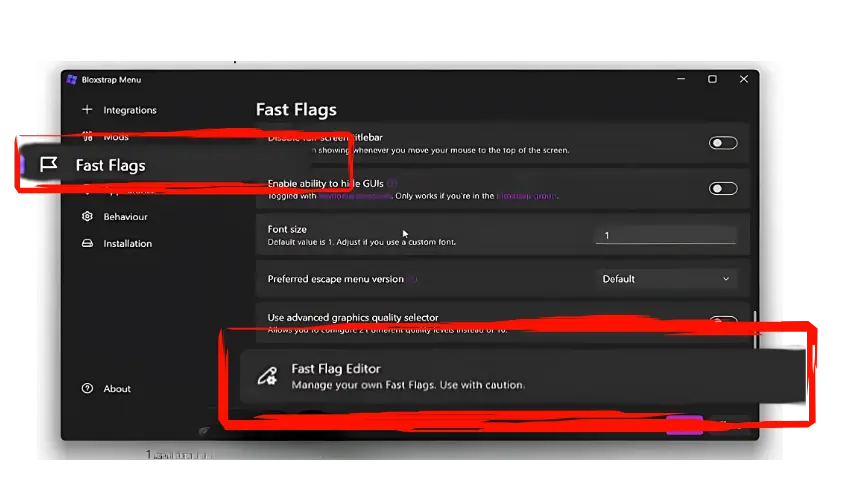
- A warning message will appear — read it carefully. It simply reminds you to be cautious when modifying internal Roblox settings.
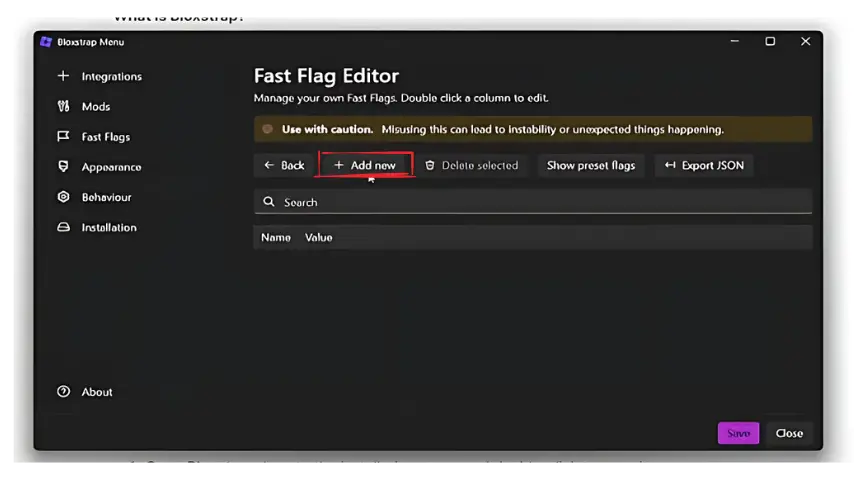
- Click “I know what I’m doing” to proceed.

- Click “Add New” and then go to “Import JSON.”
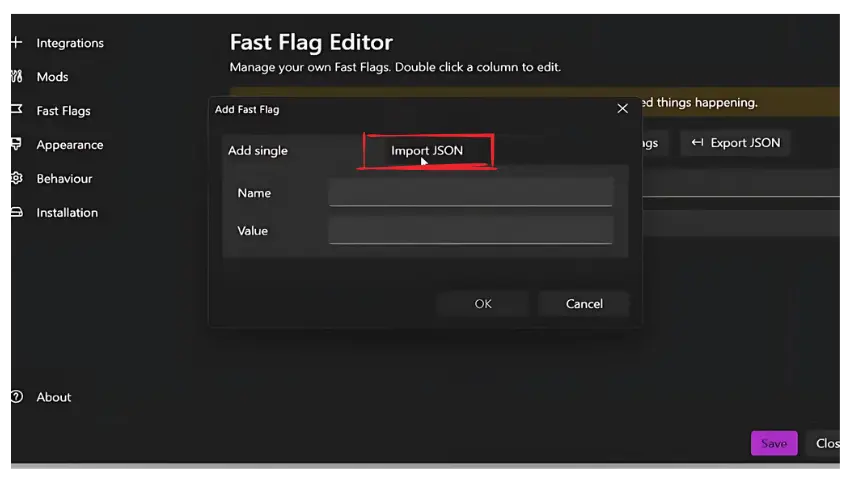
- Copy the optimized FastFlag JSON code from below and paste the copied code into the editor and click “OK.”
{
  "FLogNetwork": "7",
  "FFlagUseNewAnimationSystem": "False",
  "FFlagDebugDisableTelemetryEventIngest": "True",
  "FFlagTweenOptimizations": "True",
  "DFIntCSGLevelOfDetailSwitchingDistance": "0",
  "FFlagDebugSkyGray": "True",
  "DFFlagDebugPerfMode": "False",
  "DFFlagBrowserTrackerIdTelemetryEnabled": "False",
  "DFStringTelemetryV2Url": "null",
  "FFlagFixGraphicsQuality": "True",
  "FFlagEnableNewHeapSnapshots": "False",
  "FFlagNewNetworking": "False",
  "FFlagPreloadAllFonts": "False",
  "FStringGamesUrlPath": "/games/",
  "DFFlagDisableFastLogTelemetry": "True",
  "FFlagNewLightAttenuation": "True",
  "FFlagDebugGraphicsPreferD3D11": "True",
  "FFlagEnableTerrainFoliageOptimizations": "True",
  "FFlagDebugDisableTelemetryPoint": "True",
  "DFStringAltTelegrafHTTPTransportUrl": "null",
  "FFlagEnableHumanoidLuaSideCaching": "False",
  "DFFlagTextureQualityOverrideEnabled": "True",
  "DFIntCSGLevelOfDetailSwitchingDistanceL34": "0",
  "FFlagFastGPULightCulling3": "True",
  "FFlagEnableNewInput": "True",
  "FFlagCommitToGraphicsQualityFix": "True",
  "FFlagAnimatePhysics": "False",
  "FFlagSimIslandizerManager": "false",
  "FFlagDebugDisableTelemetryEphemeralCounter": "True",
  "FFlagDebugDisableTelemetryV2Stat": "True",
  "FFlagUseUnifiedRenderStepped": "False",
  "FFlagUseParticlesV2": "False",
  "DFIntCSGLevelOfDetailSwitchingDistanceL12": "0",
  "FFlagTaskSchedulerLimitTargetFpsTo2402": "False",
  "FFlagUseDeferredContext": "False",
  "FFlagOptimizeEmotes": "False",
  "DFStringLightstepToken": "null",
  "FFlagFixScalingModelRendering": "False",
  "DFIntNewRunningBaseAltitudeD": "45",
  "FFlagDebugDisableTelemetryV2Counter": "True",
  "DFIntClientLightingTechnologyChangedTelemetryHundredthsPercent": "0",
  "FFlagUseDynamicSun": "False",
  "DFFlagDebugPauseVoxelizer": "True",
  "DFStringTelegrafHTTPTransportUrl": "null",
  "DFStringRobloxAnalyticsURL": "null",
  "DFIntLightstepHTTPTransportHundredthsPercent2": "0",
  "DFStringLightstepHTTPTransportUrlHost": "null",
  "DFStringCrashUploadToBacktraceWindowsPlayerToken": "null",
  "FFlagEnableTerrainOptimizations": "True",
  "DFFlagDisableDPIScale": "True",
  "FFlagLuaAppSystemBar": "False",
  "FFlagFixMeshPartScaling": "False",
  "DFStringCrashUploadToBacktraceBaseUrl": "null",
  "DFStringCrashUploadToBacktraceMacPlayerToken": "null",
  "DFIntS2PhysicsSenderRate": "250",
  "DFIntTaskSchedulerTargetFps": "999999",
  "FFlagEnableLightAttachToPart": "False",
  "FFlagDebugDisableTelemetryEphemeralStat": "True",
  "FFlagDebugDisableTelemetryV2Event": "True",
  "FFlagAdServiceEnabled": "False",
  "DFIntCSGLevelOfDetailSwitchingDistanceL23": "0",
  "DFStringHttpPointsReporterUrl": "null",
  "FIntRenderShadowIntensity": "0",
  "FFlagDebugCrashReports": "False",
  "FStringCoreScriptBacktraceErrorUploadToken": "null",
  "FFlagDebugDisplayFPS": "False",
  "DFFlagEnableLightstepReporting2": "False",
  "DFStringAltHttpPointsReporterUrl": "null",
  "DFStringLightstepHTTPTransportUrlPath": "null",
  "DFIntRenderingThrottleDelayInMS": "1",
  "DFIntRunningBaseOrientationP": "115",
  "FFlagHandleAltEnterFullscreenManually": "False",
  "DFFlagDebugRenderForceTechnologyVoxel": "True",
  "DFFlagBaseNetworkMetrics": "False",
  "FFlagDisablePostFx": "True",
  "FIntTerrainArraySliceSize": "0",
  "FIntDebugForceMSAASamples": "1"
}
⚠️ Note: If a popup says some of the flags already exist, just confirm to override them. And click “Yes.”
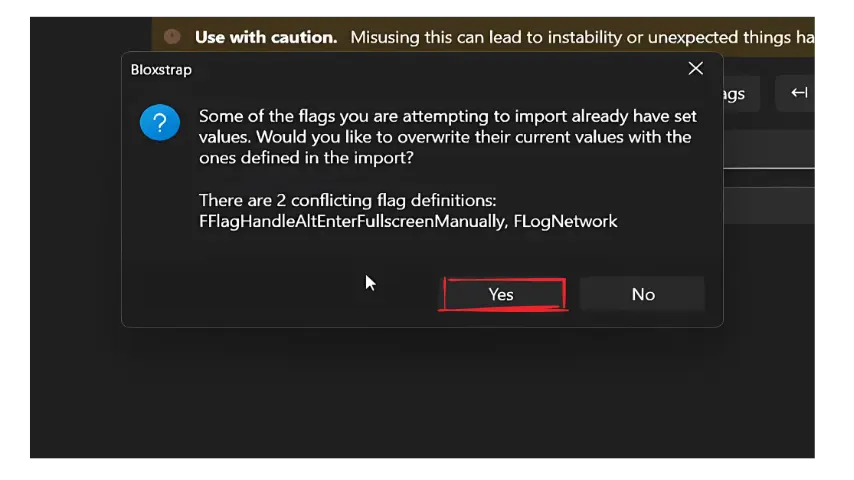
Bloxstrap Fast Flags Tutorial
Customize Bloxstrap settings on your prefrence
Some FFlags Roblox may affect visual quality — for example, the sky may appear gray for performance gains.
If you prefer default visuals:
- Scroll through the Bloxstrap Fast flag list.
- Locate and delete any specific flags you don’t want (like the gray sky).
- When satisfied, click “Save” to apply.
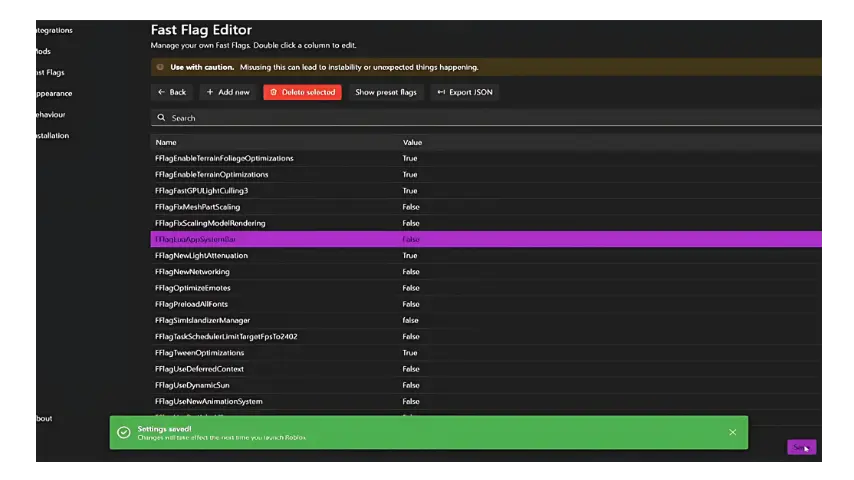
Bloxstrap Best Fast Flags Settings for Ping Reduction
We’ve discussed the best method to reduce ping using Bloxstrap FastFlags, please follow the step below of Bloxstrap FastFlags pings
- Click “Add New” again.
- Paste the Ping optimization JSON into the editor, given below.
- Ignore any warnings or errors — click OK, then Save.
{
  "FIntRakNetResendBufferArrayLength": "128",
  "FFlagOptimizeNetwork": "True",
  "FFlagOptimizeNetworkRouting": "True",
  "FFlagOptimizeNetworkTransport": "True",
  "FFlagOptimizeServerTickRate": "True",
  "DFIntServerPhysicsUpdateRate": "60",
  "DFIntServerTickRate": "60",
  "DFIntConnectionMTUSize": 900,
  "DFIntRakNetResendRttMultiple": "1",
  "DFIntRaknetBandwidthPingSendEveryXSeconds": "1",
  "DFIntOptimizePingThreshold": "50",
  "DFIntPlayerNetworkUpdateQueueSize": "20",
  "DFIntPlayerNetworkUpdateRate": "60",
  "DFIntNetworkPrediction": "120",
  "DFIntNetworkLatencyTolerance": "1",
  "DFIntMinimalNetworkPrediction": "0.1"
}
⚠️ Note: Ping results vary. Some users report improvement, while others notice no change — give it a try and test your performance.
Configure Fast Flags Roblox for FPS Boost
- Go to Fast Flags Bloxstrap
- Change these settings:
- Anti-Aliasing Quality → 1x
- Disable Player Shadows → ON
- Disable Post-Processing Effects → ON
- Disable Terrain Limit → ON
- Frame Rate Cap → 0 (unlimited) or match your monitor’s refresh rate, select what you want
- Preferred Lighting Technology → Test between options (Voxel gave best FPS in this case)
- Rendering Mode → Test between Direct3D10 or keep it on automatic
- Texture Quality → Lowest (worse visuals, better FPS)

You’re Done!
You’ve now applied the best FPS and ping optimization settings for Roblox using Bloxstrap Fast Flags. You can always return to adjust or remove individual flags as needed.